
How to Get Sonos Controls Back on Your iPhone Lock Screen Using iOS Live Activities
For a very long time, controlling your Sonos sound system from an Apple device felt like taking a step backward. If you were playing music throughout your home and needed to quickly turn down the volume, pause a track, or skip to the next song, you had to unlock your iPhone, hunt for the Sonos app icon, wait for it to connect to your local network, and finally access the playback controls. For an ecosystem that prides itself on seamless integration and user-friendly design, this friction was a constant source of frustration for smart home enthusiasts.
Fortunately, those days of endless tapping are officially over. Sonos has finally brought native playback controls back to the iOS lock screen through a clever implementation of Apple's Live Activities feature. Whether you are rocking the latest iPhone or using an older supported model, you can now manage your multi-room audio system without ever truly unlocking your device. In this comprehensive guide, we will walk you through everything you need to know about this exciting feature, explain how it works, and show you step-by-step how to get it running on your iPhone today.
Understanding the Return of Sonos iOS Lock Screen Controls
To truly appreciate this update, it helps to understand why the controls disappeared in the first place. Years ago, volume control via hardware buttons on iPhones and iPads worked natively with Sonos systems. However, ongoing patent disputes and technical shifts forced changes in how third-party apps interact with iOS system audio. For a long period, users were left without a direct, glanceable way to manage their music from the lock screen.
Enter Apple's Live Activities and Dynamic Island. Originally introduced to track real-time events like sports scores, food deliveries, and flight statuses, Live Activities allow apps to pin interactive widgets directly to the lock screen and the top of the iPhone display. Sonos realized this was the golden ticket to solving their software navigation dilemma. By leveraging Live Activities, the Sonos app can now securely and efficiently display what is currently playing on your speakers without requiring continuous background app refreshing that drains your battery.
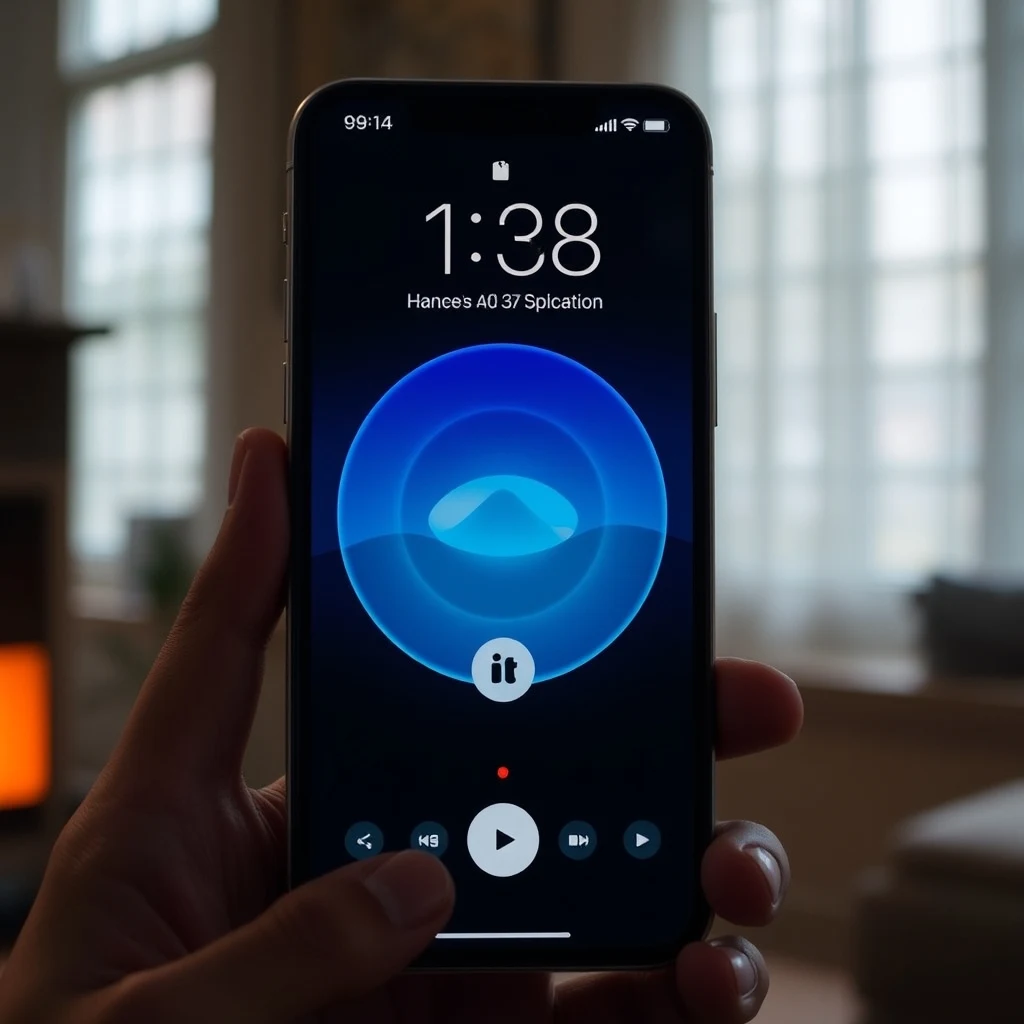
The result is a responsive, beautifully designed card that sits right on your lock screen. It displays rich album artwork, the title of the track, the artist name, the active room or group, and essential playback buttons including play, pause, skip, and rewind. Even better, it seamlessly integrates with the Dynamic Island on compatible iPhone models, giving you a mini visualizer and quick-access shortcut while you are multitasking inside other apps.
Why the Feature is Disabled by Default
When you update your Sonos app and the accompanying firmware, you might wonder why your lock screen still looks completely blank when music is playing. That is because Sonos has set the Live Activities integration to off by default.
There are a couple of logical reasons for this design choice. First, smart home environments can be dynamic and unpredictable. If multiple people are sharing a household, having lock screen controls pop up automatically for every audio stream in the house could lead to unwanted interruptions. Second, user privacy and preference play a major role. Apple and Sonos want to ensure that users explicitly opt into features that display persistent notifications or lock screen widgets. Enabling the feature requires just a quick trip into your app settings, ensuring you remain in complete control of your smartphone interface.
Step-by-Step Guide: How to Enable Sonos Live Activities on Your iPhone
Getting your lock screen controls back is a straightforward process. Before you begin, make sure your iPhone is updated to a recent version of iOS that supports Live Activities (iOS 16.1 or later is required, though running the latest iOS version is always recommended for optimal performance) and that your Sonos app is updated to the newest version available via the Apple App Store.
- Open the Sonos App: Unlock your iPhone and launch the official Sonos application on your device. Ensure your system connects properly to your local Wi-Fi network and your speakers are online.
- Navigate to Settings: Tap on the gear icon (Settings), typically located in the bottom right corner of the app interface, to open your system preferences.
- Select App Preferences: Scroll through the menu options until you find the section dedicated to app-specific settings or system preferences. Look for the toggle related to Live Activities.
- Toggle the Feature On: Tap the switch to enable Live Activities. You may also see a secondary prompt asking for permission to allow the Sonos app to send persistent updates to your lock screen. Accept these permissions.
- Verify iOS System Settings: If the app setting does not immediately stick, open your native iPhone Settings app, scroll down to find Sonos in your list of installed applications, tap on it, and ensure that Live Activities is explicitly toggled on at the operating system level.
Once you have completed these steps, you are ready to test the functionality. Play a song on any of your Sonos speakers around the house, lock your phone, and wake up the screen. You should immediately see the Live Activity widget displayed proudly on your lock screen.
Key Features and Capabilities of the New Sonos Lock Screen Integration
This is not just a basic, static notification banner. Sonos has packed several thoughtful features into this implementation to make your listening experience as smooth as possible.
1. Persistent Playback Visibility
One of the most annoying traits of older media controls was how quickly they vanished the moment audio stopped. The new Sonos Live Activity is designed to stick around. Even after you pause playback, the control card remains accessible on your lock screen for up to 15 minutes. This means if you pause your music to answer a phone call or chat with a visitor, you do not have to reopen the app to resume your podcast or playlist when you return.
2. Dynamic Island Integration
If you are using an iPhone model equipped with the Dynamic Island (such as the iPhone 14 Pro, iPhone 15 series, or iPhone 16 lineup), the Sonos integration goes even further. When you swipe away from your lock screen to use other apps, active music playback shrinks into the Dynamic Island. A quick tap on the island expands the mini-controls, while a long press opens a rich interactive widget, allowing you to manage your audio without ever interrupting your workflow in Safari, messaging apps, or social media.
3. Rich Visuals and Metadata
The lock screen widget is visually striking. It displays high-resolution album artwork pulled directly from your streaming service—whether you use Apple Music, Spotify, Amazon Music, Tidal, or local libraries. Combined with clear typography showing track names and artist details, it provides an aesthetic upgrade to your iPhone's lock screen.
4. Comprehensive Ecosystem Support
Beyond the iPhone lock screen, this update works in tandem with wider Apple ecosystem features. You enjoy robust Apple Watch integration for wrist-based control, seamless CarPlay functionality for managing home audio or mobile playback on the go, and smooth multi-room group management directly from the expanded interface.
Troubleshooting Common Issues
While the setup process is designed to be hassle-free, you might occasionally run into a scenario where the Live Activity refuses to appear. If you find yourself staring at a blank lock screen while your music is blaring in the living room, try these troubleshooting tips:
- Check iOS Permissions: Sometimes iOS background app refresh restrictions block Live Activities. Go to your iPhone Settings, locate Sonos, and verify that background app refresh and notifications are fully enabled.
- Restart the App: Force-close the Sonos app by swiping up from your home screen and clearing it from memory. Relaunch the app and start a new stream to trigger the Live Activity service.
- Update Everything: Ensure that both your iPhone's iOS operating system and your Sonos app are running the absolute latest software versions. Mismatched software builds can occasionally cause communication errors between the device and the speaker system.
- Check Network Stability: Because Sonos relies heavily on your local Wi-Fi network to broadcast state changes, temporary router hiccups can prevent the app from broadcasting playback status to your phone. A quick router reboot often clears up persistent connection glitches.
Comparing Old vs. New Sonos Control Methods
To truly understand how much better your smart home setup is now, let us look at a quick comparison of how controlling your music used to work versus how it works today with Live Activities enabled.
| Feature | Old Method (Without Live Activities) | New Method (With Live Activities) |
|---|---|---|
| Lock Screen Access | None (Required unlocking the phone) | Instant, persistent visual widget |
| App Launch Requirement | Must open and load the Sonos app | Zero app launches required for basic controls |
| Multitasking Support | Hidden when using other apps | Integrated directly into the Dynamic Island |
| Timeout Duration | Disappeared instantly upon stopping music | Remains available for 15 minutes after pausing |
Tips to Enhance Your Sonos Experience on iOS
Now that you have successfully restored lock screen controls to your iPhone, you can take your smart audio setup to the next level with a few expert tips:
Customize Your Rooms and Groups: If you frequently group different rooms together—such as combining the kitchen and living room speakers for a party—make sure your default groups are neatly organized inside the Sonos app. The lock screen widget will reflect the active group leader, making it easy to control multiple zones simultaneously.
Utilize Siri Shortcuts: Combine your new lock screen controls with Siri voice commands. You can create custom phrases to trigger specific playlists or adjust volumes across your home without even touching your phone.
Manage Battery Impact: While Apple optimizes Live Activities to consume minimal power, having multiple apps running persistent location or network activities can slightly affect battery longevity. If you notice increased battery drain, review your active Live Activities across all apps in your iOS settings and disable any that you do not regularly use.
Conclusion
The return of Sonos controls to the iPhone lock screen is a massive win for smart home enthusiasts and everyday music lovers alike. By tapping into the power of iOS Live Activities and the Dynamic Island, Sonos has successfully eliminated the friction that plagued its mobile experience for years.
Taking just two minutes to dive into your app settings and enable this feature will completely transform how you interact with your sound system. No more unlocking your phone, no more waiting for slow app connections—just instant, beautiful, and effortless control of your favorite music right at your fingertips. Head into your Sonos app settings today, turn on Live Activities, and enjoy the seamless listening experience you have been waiting for.



0 Comments