
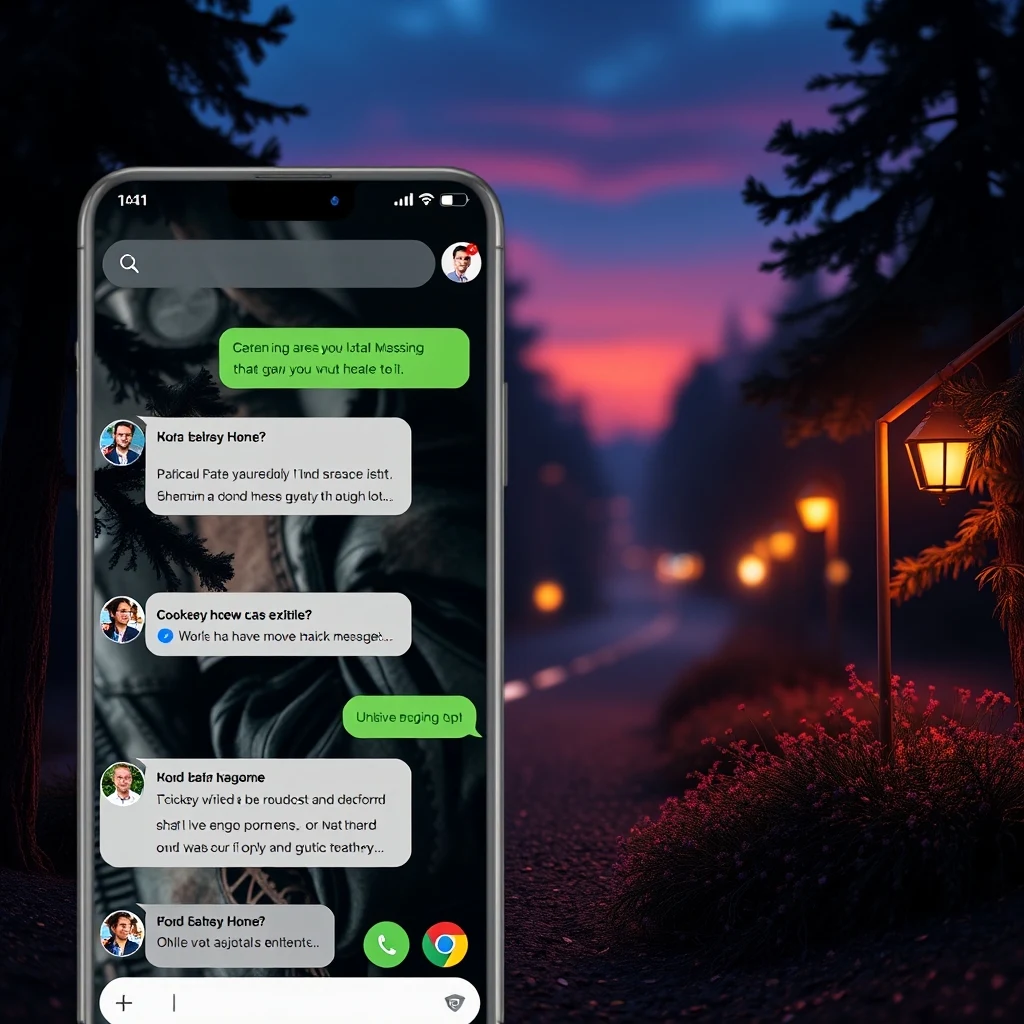
How to Use Google Messages Chat Themes: The Customization Feature We Have Wanted for Years
If you have been using Android phones for any length of time, you likely have a complex relationship with messaging apps. Over the years, Google has launched, rebranded, sunsetted, and reinvented its messaging ecosystem more times than most of us care to count. However, through all the shifting tides, Google Messages has finally emerged as the undisputed standard for Android text messaging, especially with the widespread adoption of Rich Communication Services, commonly known as RCS.
Yet, despite becoming a powerful, modern messaging platform complete with end-to-end encryption, high-resolution media sharing, and typing indicators, Google Messages has historically lagged behind competitors in one major department: aesthetics and personalization. For years, if you opened a chat thread, you were greeted by either a blinding white background or a stark dark mode. If you wanted vibrant conversation backgrounds, custom chat bubbles, or unique visual flairs to differentiate your chats, you had to look toward third-party messaging clients or Apple's iMessage.
That era of visual monotony is officially over. Google has finally rolled out a robust chat customization setting that users have wanted for years. Whether you want to color-code your conversations, match your chat background to your current wallpaper, or simply bring some personality back into your daily texting habits, custom chat themes are here. In this comprehensive guide, we will explore why this update matters, how the new feature works, and step-by-step instructions on how to use it right now.
The Long Road to True Messaging Customization
To understand why this new Google Messages feature feels like such a massive win, it helps to look at the broader landscape of modern communication. For nearly a decade, chatting apps like WhatsApp, Telegram, Facebook Messenger, and Apple iMessage have allowed users to tailor their interface. People love personalization. Customizing our digital spaces makes our devices feel truly ours, transforming a sterile utility tool into an engaging personal environment.
For a long time, Google Messages relied heavily on dynamic color themes derived from your phone's system wallpaper, a feature introduced via Material You. While Material You changed the overall tint of the app's menus, buttons, and contact headers, individual chat bubbles remained stubbornly uniform. A chat with your boss looked identical to a chat with your best friend or your partner. For power users who manage dozens of conversations a day, the lack of visual distinction made it easy to accidentally text the wrong thread—a minor mistake that could range from mildly embarrassing to catastrophic.
Furthermore, third-party texting apps on Android historically offered deep customization, but switching to them often meant sacrificing modern RCS functionality, seamless cross-platform syncing, or security updates. Google had to build a native solution that balanced sleek design, accessibility, and high performance. The arrival of individual chat themes bridges this gap entirely, bringing Google Messages up to speed with modern consumer expectations.
What Are Google Messages Chat Themes?
The newly introduced chat themes feature allows users to apply unique visual styles to specific conversation threads within Google Messages. Instead of applying a global theme across your entire application, you can dive into individual chats—whether they are one-on-one conversations or group chats—and assign a distinct look and feel to them.
When you apply a theme to a conversation, it transforms several elements:
- Chat Bubbles: The color palette of your sent and received text bubbles shifts to match the selected theme.
- Background Backdrops: Subtle background patterns, gradients, or artistic illustrations appear behind your messages, giving the text thread texture and depth.
- Dynamic Contrast: Text colors automatically adjust to ensure high legibility against the chosen background, keeping accessibility front and center.
What makes this implementation particularly brilliant is its flexibility. You can set a vibrant, colorful theme for your family group chat, a sleek, minimalist dark theme for your professional contacts, and a playful gradient for your close friends. Best of all, depending on how the feature rolls out on your device, some themes may even sync across participants or remain uniquely tailored to your local view, ensuring your app looks precisely how you want it to look.
Prerequisites: Getting Ready to Customize
Before diving into the steps, it is important to ensure your device is properly prepared. Because software rollouts at Google can sometimes happen in stages via server-side updates and Play Store patches, you will want to make sure your app is running the latest software version.
Here is a quick checklist to ensure you have access to chat themes:
- Open the Google Play Store on your Android device.
- Search for "Google Messages" and check if an update is available.
- If an update button is present, tap it and wait for the latest version to install.
- Ensure you have joined the Google Messages beta program if the stable release hasn't hit your region yet, though the feature is rapidly rolling out to all public users.
Once your app is up to date, you are ready to start transforming your inbox. Let us walk through the exact process of applying and managing your new chat themes.
How to Use Google Messages Chat Themes: Step-by-Step Guide
Applying a custom chat theme takes only a few seconds. The interface is designed to be intuitive, clean, and fast. Follow these simple steps to customize any conversation in your inbox:
Step 1: Open Google Messages
Launch the Google Messages app from your app drawer or home screen. Take a moment to look at your message list and decide which conversation you want to customize first. It is often fun to start with your most active chat thread.
Step 2: Select a Conversation Thread
Tap on the contact or group chat to open the full message history. You will be brought into the active chat window where you can see your sent and received messages.
Step 3: Access Chat Details
Once you are inside the conversation, look toward the top right corner of the screen. Tap on the three vertical dots (menu icon) or tap directly on the contact’s profile name/avatar at the top of the screen. This action will open the conversation settings and details panel.
Step 4: Find the "Change Theme" or "Chat Theme" Option
In the conversation details menu, scroll through the available options until you locate the setting labeled "Change theme" or "Chat theme." Tap on this option to open the theme selection gallery.
Step 5: Browse and Select Your Desired Theme
A visual gallery of themes will appear on your screen. You will typically see a wide variety of choices, ranging from solid color palettes inspired by Material You to rich, thematic illustrations and dynamic gradient designs.
Tap on different themes to preview how they look in real-time. The preview window will show you how your chat bubbles and background will appear once applied.
Step 6: Confirm and Save
Once you find a theme that catches your eye, tap the Confirm, Save, or Apply button. The menu will close, and you will be instantly transported back to your chat window, which will now feature your brand-new custom look.
Tips and Tricks for Maximizing Chat Themes
Now that you know the basics of applying chat themes, let us explore some expert tips and tricks to help you get the most out of this long-awaited feature.
1. Color-Code Your Contacts for Productivity
Customization isn't just about making your phone look pretty; it can also be a powerful organizational tool. Consider assigning specific color categories to different areas of your life:
- Work and Professional Chats: Keep these clean, neutral, or professional.
- Family and Close Relatives: Use warm, inviting tones or custom family-themed artwork if available.
- Close Friends: Go wild with vibrant gradients, neon accents, and high-energy color schemes.
By color-coding your chats, you train your brain to recognize context instantly the moment you open a conversation, reducing the likelihood of accidental misfires.
2. Keep Accessibility and Readability in Mind
While some dark or heavily patterned themes look incredible, they can occasionally impact readability depending on your screen's brightness and your personal eyesight preferences. When selecting a theme, send a quick test message to ensure the text remains sharp and easy to read against the backdrop. Google has built great contrast ratios into most default options, but user-generated or heavily saturated styles always warrant a quick visual check.
3. Mix and Match with System Dark Mode
Remember that Google Messages interacts with your phone's system-wide dark mode settings. Some chat themes adapt dynamically depending on whether your phone is currently displaying a light or dark interface. Experiment with how your chosen theme shifts when you toggle your device's dark theme on and off during evening hours.
Troubleshooting: Why Can’t I See Chat Themes?
If you have followed the steps above and cannot find the "Change theme" option in your conversation settings, do not panic. Software rollouts at Google frequently happen via phased server-side updates. This means that even if you have the latest version of the app installed from the Play Store, the feature switch might not have been flipped for your specific account yet.
Here are a few troubleshooting steps you can try to speed up the process:
- Force Stop and Clear Cache: Go to your phone’s system settings, find Apps, select Google Messages, tap Storage, and clear the cache. Then, force stop the app and reopen it.
- Check for Play Services Updates: Ensure your Google Play Services and system web views are fully updated, as Google Messages relies heavily on core system frameworks.
- Exercise Patience: Server-side rollouts can sometimes take a week or two to hit 100% of global users. If it isn't there today, keep an eye on your app over the coming days.
Comparing Google Messages to the Competition
With the introduction of chat themes, Google Messages has effectively closed the feature gap that once separated it from third-party messaging powerhouses like Telegram and WhatsApp. Let us look at how Google's implementation stacks up against the competition:
| Feature | Google Messages | Telegram | |
|---|---|---|---|
| RCS / Modern Protocol | Native Standard | Proprietary Cloud | Proprietary Cloud |
| Per-Chat Customization | Available Now | Available | Advanced (Custom Patterns & Animations) |
| End-to-End Encryption | Standard on RCS | Standard | Secret Chats Only |
| Ecosystem Integration | Deep Android Integration | Cross-Platform | Cross-Platform Cloud |
As the table illustrates, Google Messages is no longer just a basic fallback utility app for traditional SMS. By blending cutting-edge RCS capabilities with deep personalization features like chat themes, Google is delivering an all-in-one messaging experience that satisfies both productivity enthusiasts and design-conscious users alike.
Looking Forward: What Else is Coming to Google Messages?
The arrival of chat themes is a massive milestone, but Google is showing no signs of slowing down its development pipeline. Over the past year, we have seen the integration of Gemini artificial intelligence features directly into the messaging stream, allowing users to draft messages, brainstorm ideas, and summarize long conversations without leaving the app. Combined with improved reactions, high-resolution media sharing, and streamlined web syncing, Google Messages has evolved into one of the most exciting apps in the Android ecosystem.
As personalization continues to be a major focus for mobile operating systems, we can expect Google to expand its theme library further in future updates. Additional background options, animated effects, and perhaps even custom font pairings could be just around the corner.
Conclusion
The ability to customize individual chat themes in Google Messages is a feature that Android enthusiasts have requested for years. It bridges the gap between functional communication and personal expression, turning a standard inbox into a vibrant, organized, and visually appealing space.
By following our step-by-step guide, you can start breathing new life into your conversations right now. Whether you want to differentiate your work chats from your personal life or simply enjoy a fresh splash of color every time you text a friend, chat themes give you the power to make Google Messages truly your own.
Head over to your Google Messages app, check for updates, and start experimenting with your chat aesthetics today. Happy texting from all of us here at TechRook!



0 Comments